

If your computer suddenly feels slower, shows strange pop-ups, or opens websites you never clicked, it is natural to worry. The good news is that you can check if your PC has a virus on Windows 11 without buying anything or installing extra software. Windows already includes the tools you need: Windows Security, Task Manager, and a powerful offline scan that runs before Windows starts.
This guide explains the warning signs worth taking seriously, the exact free checks to run in the right order, and what to do if something is actually found. It is written for normal home users, so every step uses built-in Windows tools.
Table of Contents
How to Check If Your PC Has a Virus: 9 Warning Signs
No single symptom proves an infection. What matters is a pattern, especially when several of these signs appear at the same time or right after you installed something new.
1. Sudden slowdowns with no clear reason
Some malware runs hidden tasks such as crypto-mining or sending spam, which uses your processor, memory, or disk in the background. If your PC was fine last week and is now slow while doing nothing, it deserves a check.
2. Pop-ups outside your browser
Ads that appear on the desktop, even when no browser is open, are a classic sign of adware or an unwanted program.
3. Your browser homepage or search engine changed
If your searches are redirected to an unknown search site, or your homepage changed without your permission, a browser hijacker or malicious extension may be responsible.
4. Fake virus warnings that ask you to call or pay
Real Windows Security alerts never ask you to call a phone number or pay to remove a threat. Full-screen warnings with a support number are scams, and the page itself may come from an infected browser or a malicious site.
5. Security tools are turned off by themselves
If real-time protection is disabled and you did not turn it off, or Windows Security will not open, treat it as a serious warning sign. Some malware tries to disable protection first.
6. Programs you do not remember installing
New apps, toolbars, or “PC optimizer” tools that appeared without your consent often arrive bundled with free downloads.
7. High network activity when you are not using the internet
Unusual data usage or constant network activity can mean a program is sending information or downloading more files.
8. Files that are missing, renamed, or locked
Files with strange new extensions or a note asking for payment are signs of ransomware. Disconnect from the internet immediately if you see this.
9. Your accounts send messages you did not write
If friends receive emails or messages from you that you never sent, your PC or your account password may be compromised.
Slow PC Does Not Always Mean Virus
Before you panic, remember that many common problems look like malware but are not. A full disk, Windows Update installing in the background, too many startup apps, an old hard drive, or a browser with dozens of tabs can all slow a PC down. That is why the checks below start with a scan and then look at what is actually running.
| Symptom | Possible normal cause | More likely malware if… |
|---|---|---|
| Slow performance | Updates, full disk, many startup apps | An unknown process uses high CPU all the time |
| Pop-ups | Website notifications you allowed | Ads appear on the desktop with no browser open |
| Changed homepage | A setting changed during a software install | It changes back after you fix it |
| Antivirus turned off | You installed another antivirus | You cannot turn it back on |
Step 1: Run a Quick Scan in Windows Security
Windows 11 includes Microsoft Defender Antivirus inside the Windows Security app. Start here:
- Click Start, type Windows Security, and open it.
- Select Virus & threat protection.
- Under Protection updates, click Protection updates > Check for updates so the scan uses the latest definitions.
- Go back and click Quick scan.
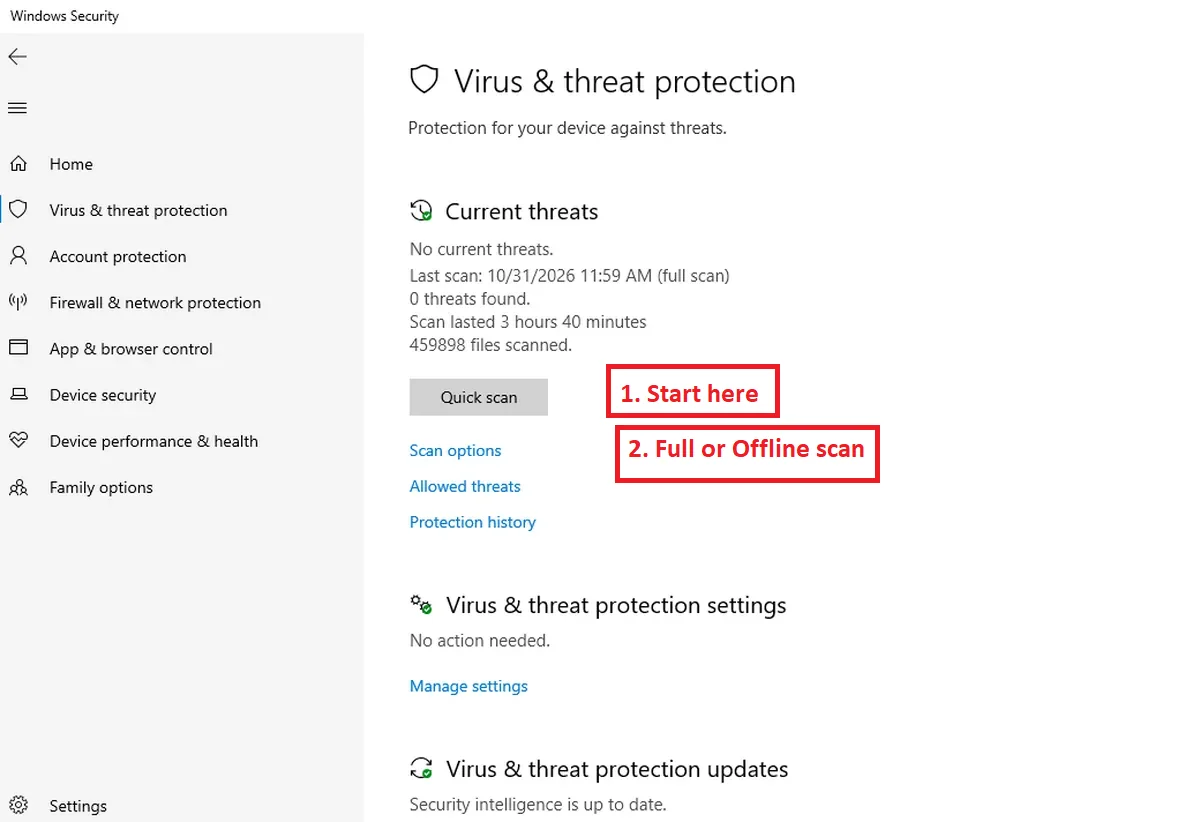
A quick scan checks the places where active threats usually hide, and it normally finishes in a few minutes. If you want to understand the difference in detail, read our guide on quick scan vs full scan.
Step 2: Run a Full Scan
If the quick scan finds nothing but the symptoms continue, run a deeper check:
- In Virus & threat protection, click Scan options.
- Select Full scan and click Scan now.
A full scan can take an hour or more depending on how many files you have. You can keep using the PC, but it may feel slower until the scan is finished. For routine maintenance, see how often you should run an antivirus scan.
Step 3: Run a Microsoft Defender Offline Scan
Some malware, such as rootkits, hides while Windows is running. The offline scan restarts your PC and scans it before Windows fully loads, when that malware cannot defend itself.
- Save your work and close all apps.
- Open Windows Security > Virus & threat protection > Scan options.
- Select Microsoft Defender Antivirus (offline scan) and click Scan now.
Your PC will restart, run the scan, and then boot back into Windows. To see the results, open Virus & threat protection > Protection history. Microsoft explains the process in its official guide to helping protect your PC with Microsoft Defender Offline, and the technical details are documented on Microsoft Learn.
Step 4: Check Task Manager and Startup Apps
Scans are important, but you should also look at what is actually running.
- Press Ctrl + Shift + Esc to open Task Manager.
- In Processes, click the CPU, Memory, and Network columns to sort them. Look for names you do not recognize that stay high even when the PC is idle.
- Right-click an unknown process and choose Search online to see what it is before you end it.
- Open the Startup apps page and disable anything unknown or unnecessary.
Do not end processes you do not understand just because the name looks strange. Many legitimate Windows services have technical names. Searching first avoids breaking your system.
Step 5: Review Installed Apps and Browser Extensions
- Open Settings > Apps > Installed apps.
- Sort the list by Install date and review anything installed around the time the problem started.
- Uninstall programs you did not choose to install. If a program leaves traces behind, follow our guide to uninstall software completely.
- In your browser, open the extensions page (for example
chrome://extensionsoredge://extensions) and remove extensions you do not use or do not recognize. - Reset your browser settings if your homepage or search engine keeps changing.
What to Do If a Virus Is Found
- Let Windows Security remove or quarantine it. Follow the recommended action in the alert, then run another full scan.
- Change important passwords from a clean device. Start with your email, banking, and social media accounts, and turn on two-step verification.
- Disconnect from the internet if you see ransomware messages or locked files, and do not pay the ransom.
- Restore files from a backup if anything was damaged.
- Consider a full Windows reset if problems continue after cleaning. It is the most reliable way to remove a persistent infection.
How to Avoid Getting Infected Again
- Keep Windows and your apps updated.
- Download software only from official websites. Our guide on how to download software safely shows what to check.
- For important installers, verify the SHA256 checksum when the publisher provides one.
- Avoid cracked software, fake updates, and “free” game mods from unknown sources.
- Never allow website notifications from sites you do not trust.
- Keep a regular backup on an external drive or cloud storage.
Is the Free Windows Protection Enough?
For many careful users, Microsoft Defender provides solid everyday protection. We cover this question in detail in do you need antivirus for Windows 11. A paid security suite can make sense if you want extras such as stronger web protection, a password manager, a VPN, or protection across several devices. Compare the trade-offs in our free vs paid antivirus guide, and if you are considering an upgrade, read our Bitdefender Total Security review.
Want stronger protection than Microsoft Defender? Bitdefender adds web protection, ransomware defense, a password manager and coverage for several devices.
Check the current Bitdefender deal →
Affiliate link: AnyShop may earn a commission if you buy, at no extra cost to you.
If you decide to install another antivirus, follow our steps to switch antivirus safely so you are never left unprotected during the change.
Frequently Asked Questions
Can I check my PC for viruses for free?
Yes. Windows 11 includes Windows Security with Microsoft Defender Antivirus. You can run a quick scan, full scan, custom scan, and offline scan without paying or installing anything.
How long does a Microsoft Defender Offline scan take?
It usually takes several minutes, plus the time needed to restart your PC twice. Save your work before you start because the computer will restart automatically.
Can a virus hide from antivirus scans?
Some advanced malware tries to hide while Windows is running. That is why the offline scan is useful: it runs before Windows starts, when hidden threats are easier to detect.
Is a slow computer always a sign of a virus?
No. Updates, a full disk, too many startup programs, or old hardware are more common causes. A virus is more likely when slowness appears together with other signs, such as pop-ups, unknown programs, or disabled protection.
Should I trust pop-ups that say my PC is infected?
No. Browser pop-ups that say your PC is infected and ask you to call a number or download a “cleaner” are scams. Close the browser tab and run a scan from the Windows Security app instead.
Final Verdict
You do not need to buy anything to check if your PC has a virus. Start with a quick scan, move to a full scan and an offline scan if the symptoms continue, and then review Task Manager, startup apps, installed programs, and browser extensions. Most problems are found and solved with these free steps. If you want extra layers of protection after that, a reputable security suite can add useful features, but good habits remain your strongest defense.